
Why backing up your files matters
Photos, documents, videos, and other files can be difficult or impossible to replace if they are lost. A damaged phone, failed computer, accidental deletion, theft, or software problem can remove years of personal memories and important work in a moment.
A backup is an extra copy of a file stored somewhere separate from the original. The goal is not simply to copy files once. A good backup plan keeps copies current, stores them in more than one place, and makes it easy to recover files when needed.
The most reliable approach combines cloud storage with one or more physical backups. This gives you protection even if one backup method stops working.
Use the three copy rule
A simple way to plan your backups is the 3-2-1 rule:
- Three copies: Keep the original file and at least two additional copies.
- Two types of storage: Use different storage methods, such as cloud storage and an external drive.
- One copy elsewhere: Keep at least one copy away from your main device or home.
For example, your photo library might be stored on your computer, copied to an external hard drive, and synchronized with a cloud service. If your computer and drive are in the same room, the cloud copy still provides protection if that location is affected by a serious problem.
You do not need to create the perfect system on the first day. Start with the files that matter most, then improve your plan over time.
Choose the right backup methods
Cloud storage
Cloud storage saves files on remote servers that you access through the internet. Many services can automatically back up photos from a phone or synchronize folders from a computer.
Cloud backups are useful because they run automatically, can be accessed from multiple devices, and provide an off-site copy. They are especially convenient for photos taken on a phone.
When choosing a cloud service, check:
- How much storage space is included
- Whether automatic photo backup is available
- Which devices and file types are supported
- How files can be restored
- Whether deleted files are kept temporarily
- What privacy and security controls are available
Remember that synchronization and backup are not always the same. If you delete a file from a synchronized folder, that deletion may also appear on other devices. Look for a service with version history, a recycle bin, or a dedicated backup feature.
External drives
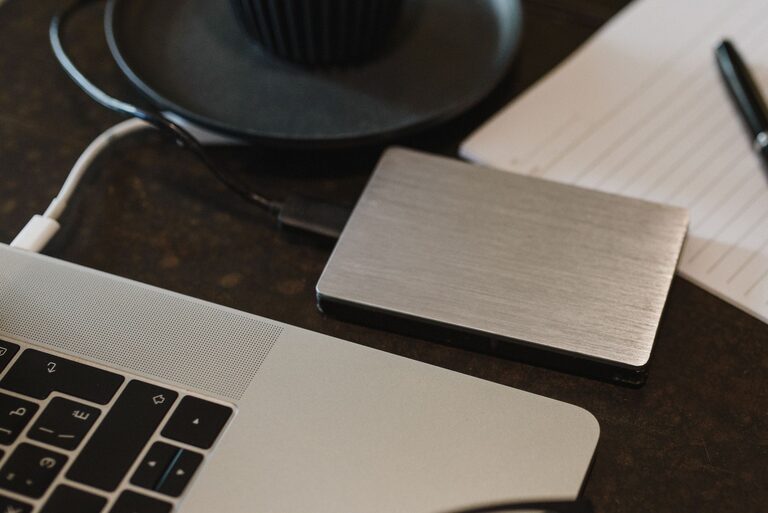
External hard drives and solid state drives are useful for creating a local copy of large photo libraries and file collections. They can be faster than uploading everything to the internet and may be more convenient for large video files.
Use a drive with enough space for your current files and future additions. Connect it regularly and run a backup program rather than copying a few files manually whenever you remember.
For better protection, disconnect the drive after a backup finishes. A drive that remains connected all the time can be affected by the same power problem, malware, or accidental deletion as the computer.
Network storage
A network attached storage device, sometimes called network storage, is a storage system connected to your home network. It can automatically collect files from several computers and phones.
This option can be useful for households with many devices, but it requires more setup and maintenance than a cloud service or portable drive. It should not be your only backup. If the device is damaged or stolen, all files stored on it may be lost.
Back up photos from your phone
Phones often contain the only copy of valuable photos. Set up automatic photo backup as soon as possible.
Start by opening your phone’s photo or storage settings and enabling automatic backup. Choose whether videos should be included, since they can use much more storage space. If the service offers an option to back up only over Wi-Fi, use it if you want to limit mobile data use.
After setup, confirm that recent photos actually appear in the cloud account. Automatic features can stop working if the account is full, the phone is not connected, or the app is restricted from running in the background.
Do not delete photos from your phone until you confirm that the full-size versions are safely backed up. If you want to free up space, use the service’s built-in option for removing items that have already been backed up.
Back up files from your computer
Before starting, organize your files into clear folders. For example, you might use folders such as:
- Photos by year or event
- Documents by category
- Videos by year
- Projects by name
- Scanned records and receipts
A simple folder structure makes it easier to check whether important files are included. It also makes restoring files less confusing.
Use your computer’s built-in backup tool when possible. These tools can create regular backups of selected folders and may keep older versions of files. Schedule backups to run daily or weekly, depending on how often your files change.
For files that change frequently, such as schoolwork or active projects, daily backups are a good choice. For a computer used mainly to store older photos, a weekly or monthly schedule may be enough, provided new photos are backed up separately.
Protect your backup accounts and devices
Backups are only useful if other people cannot easily access them. Protect cloud accounts with a strong, unique password and turn on two-step verification when it is available.
Keep your computer, phone, and backup apps updated. Updates often include improvements that help protect accounts and devices.
For external drives, store them in a cool, dry place away from direct sunlight and liquids. Label each drive with its purpose and the date of the most recent backup. If a drive contains private files, consider using device encryption or password protection.
Avoid keeping every copy in one location. A backup drive beside your computer is convenient, but it does not provide enough protection by itself.
Test your backups regularly
A backup is not confirmed until you can restore a file from it. Every few months, choose several files and restore them to a different folder or device. Open photos, documents, and videos to make sure they work correctly.
Also check:
- When the last successful backup ran
- Whether all important folders are included
- How much storage space remains
- Whether older file versions are available
- Whether your account recovery details are current
Testing takes only a few minutes and can reveal problems before you truly need the backup.
Create a routine you can maintain
The best backup system is one you will continue using. Start with automatic cloud backup for your phone, a scheduled computer backup, and one external copy of your most important files.
Add new devices and folders to the plan when you begin using them. Review your backup settings after changing phones, computers, or storage accounts.
Once a month, check that backups are completing normally. Once or twice a year, review old files, remove unnecessary duplicates, and test a full recovery of several important items.
With a small amount of planning and regular checking, you can reduce the risk of losing your photos and files and feel more confident that your digital memories are protected.